Installing the R Console
Information
The QGIS R Console gives you an R command line and editor window within QGIS. Written by Juan Mendoza, it consists of a QGIS plugin and an R package that is installed by the plugin.
Installation
You should probably install R on your system first. If you’ve not done this, get it from CRAN for your operating system.
You’ve also installed the latest QGIS version 3.xx as well, yes?
Installation requirements and instructions for the QGIS R Console are on the project GitHub page, and should be straightforward, the only catch being the need to go to the Settings section of the QGIS plugin dialog to tick the “Show also Experimental Plugins” box.
Testing and Issues Found
A successful installation should put an R icon in the “Plugins” toolbar.
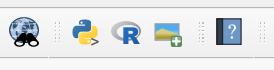
If you can’t see one, check you have the Plugins toolbar enabled in the Toolbars section of QGIS’ main View menu. If that’s set and you still can’t see it, ask an expert.
Clicking the icon will start up the plugin with an editor and a console/plots window in a panel.
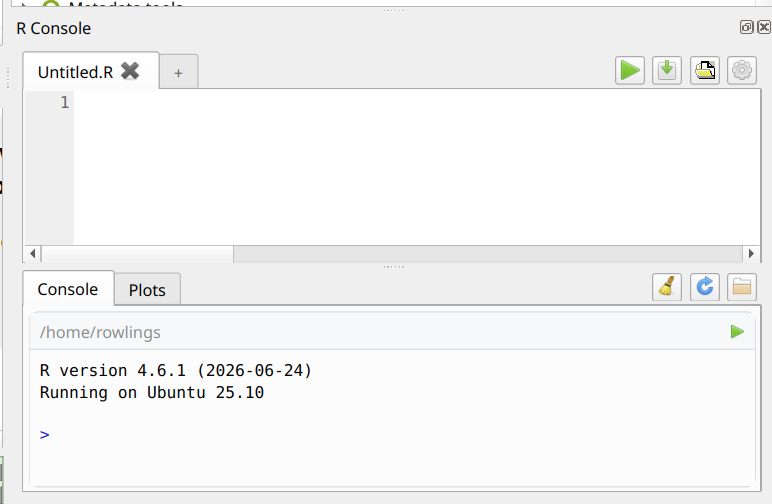
If you get an error like R Console Error: Rscript not found in PATH. then you need to configure the plugin to find your R installation. If you don’t know where your R installation is, run R in your usual way (ie outside of QGIS) and get the output from running R.home(component="bin") - this should be a path like C:\Program Files\R-4.6.1\bin\x64 on Windows or /usr/lib/R/bin on Linux, and something similar on a Mac. This is where R’s binaries are found.
Now get the R Console’s settings dialog which you get by clicking the top right button in the console panel - it may be either the small cog you can see in the above screengrab, or a “hamburger” button as seen in this one.

Which should produce this configuration dialog.
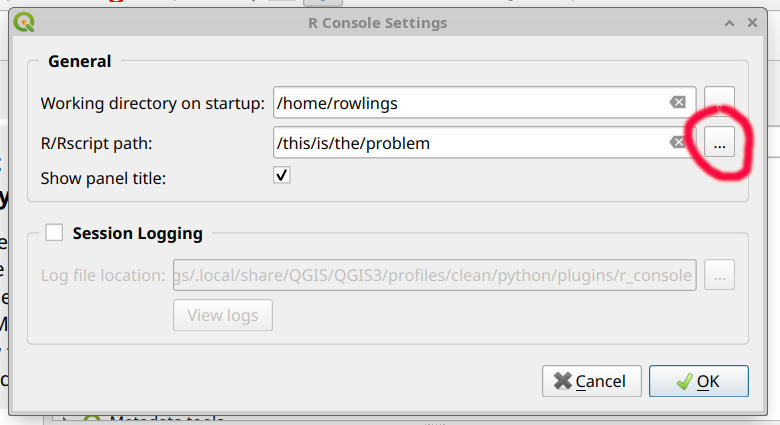
Then in the General section you need to set the R/Rscript path:. Use the “dots” button highlighted above to navigate to R’s binaries folder which you found above, and choose the Rscript.exe file (for Windows) or the Rscript file for Linux (or something similar for Mac). Clicking OK will check the selection is okay, and take you back to QGIS. The R Console should now run an R session.
If this fails, try closing the R Console panel and clicking the R icon in the toolbar again.
If that fails, restart QGIS and try again. Watch carefully for error messages. If that still fails, then consult an expert…
Success
A successful installation is when you can do the following in QGIS:
- Find the R icon in the plugins toolbar
- Click it to open the R Console Panel
- Type
message("Hello world")in the console window and get a response.
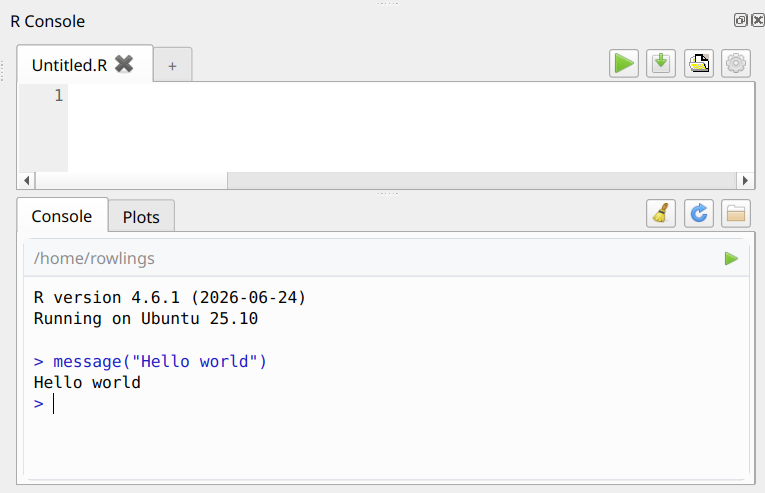
Then you’re all set for the Gambian malaria study worksheet.